DVB Inspector
Digitalekabeltelevisie.nl
User manual
Tree view
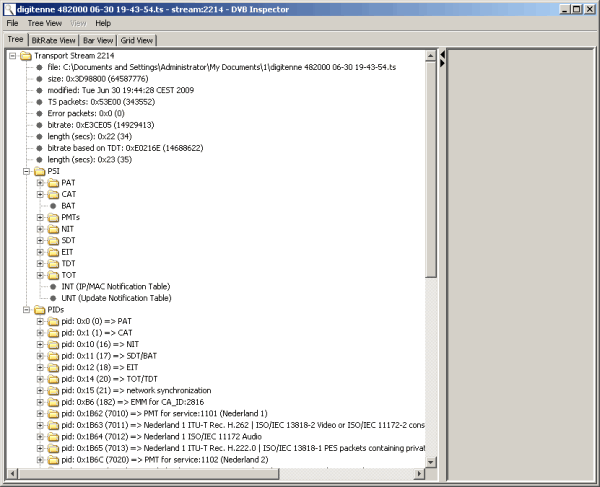
This is the view for
analyzing the data structures in a DVB stream. This view is
divided into two parts.On the left is a tree view, on the right is
a details panel, which can display additional information (text or
picture).
Initially the view will be empty. Go to the File menu, select open. Select a transport stream capture (often called a .TS file). It should consist of packets of 188, 192, 204 or 208 bytes. DVB Inspector assumes it is given a valid TS, no strict error checking is done.
General info

This is the
general layout of a field in the Tree view. First is the name of
the field. If possible the name as defined in the DVB
specification is used. After the : the value of the field is
shown, both in hexadecimal and decimal. If available after the =>
there is an interpretation or explanation of the data. This is
sometimes retrieved from a look-up file (as in the case of
CA_system_id).
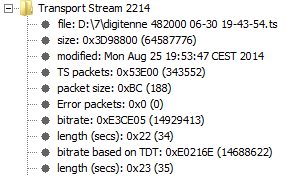
This section
contains general info about the file. The transport stream number
is retrieved from the tabel_id_extension of the PAT.
- file: file name, including path
- size: file size in bytes
- modified: file modification date
- TS packets: number of TS packets in the file
- packet size: size of the TS packets; 188, 192, 204 or 208 bytes
- Error packets: number of TS packets that contained errors.
- bitrate: bitrate based on the average of the bit rates of PIDs that contain a PCR. This is the most accurate way to calculate the bit rate.
- length (secs): file length in seconds, based on the bit rate calculated on PCRs
- bitrate based on TDT: for streams that have no PIDS with PCRs (empty transport streams) this value is calculated based on the number of bytes between different TDT tables.
- length (secs): file length in seconds, based on the bit rate calculated on TDTs
Popup menu
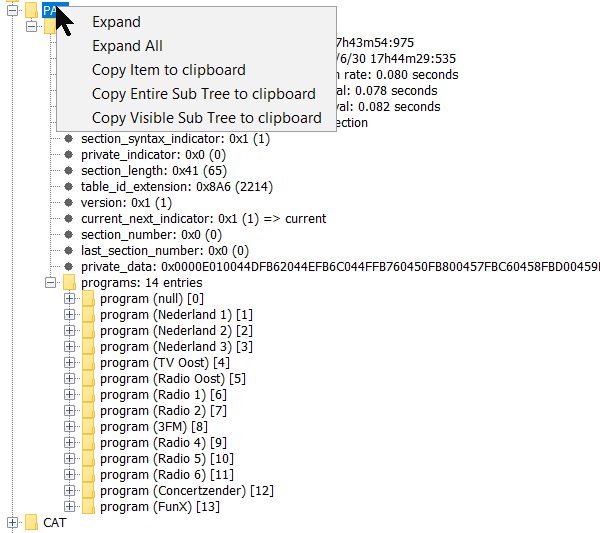
When an element in the tree
is selected, right clicking will bring up a popup menu.
Note: these option is not available in the Transport stream Packets section(s). However it does work on single transport stream packets.
Expand will expand a node one level. On the keyboard you can use the '+' key.
Exand All will expand all nodes below the selected node. Because there may be many sub nodes On the keyboard you can use the '+' key.
This has options to copy the selected element as text to the clipboard. Below is an example of what is transfered when 'Copy Visible tree to clipboard' is activated while the PAT is selected.
PAT
+-TableType: program_association_section (0/0)
  +-table_id: 0x0 (0) => program_association_section
  +-section_syntax_indicator: 0x1 (1)
  +-private_indicator: 0x0 (0)
  +-section_length: 0x41 (65)
  +-table_id_extension: 0x8A6 (2214)
  +-version: 0x1 (1)
  +-current_next_indicator: 0x1 (1) => current
  +-section_number: 0x0 (0)
  +-last_section_number: 0x0 (0)
  +-private_data: 0x0000E010044DFB62044EFB6C044FFB760450FB800457FBC60458FBD00459FBDA045AFBE4045BFBEE045CFBF8045DFC02045EFC0C045FFC160F5278DF ".....M.b.N.l.O.v.P...W...X...Y...Z...[...\...]...^..._...Rx."
  +-programs_length: 0xE (14)
  +-programs: 14 entries
    +-program (null)
    +-program (Nederland 1)
    +-program (Nederland 2)
    | +-program_number: 0x44E (1102)
    | +-program_map_PID: 0x1B6C (7020)
    +-program (Nederland 3)
    +-program (TV Oost)
    +-program (Radio Oost)
    +-program (Radio 1)
    +-program (Radio 2)
    +-program (3FM)
    +-program (Radio 4)
    +-program (Radio 5)
    +-program (Radio 6)
    +-program (Concertzender)
    +-program (FunX)
Save bytes as
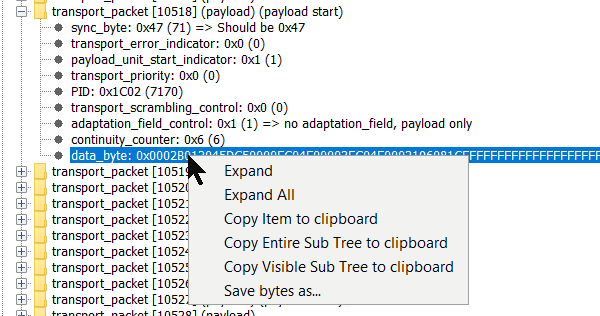
When the
selected node represents a byte array the context menu contains
an option "save bytes as..". This will open a save-dialog which
can be used to write the bytes to file.
Details Panel
Depending on which node is selected in the tree view the details panel can display additional information. This can be either text, a table, a picture or XML.
Text
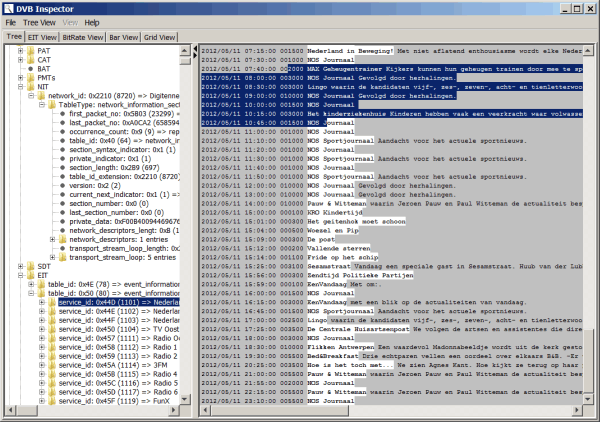 Text in the details
panel can be selected using the mouse. Text can be copied into the
clip board by using Ctrl-C. Text is put on the clip board as plain
text (no formatting) and HTML (with formatting).
Text in the details
panel can be selected using the mouse. Text can be copied into the
clip board by using Ctrl-C. Text is put on the clip board as plain
text (no formatting) and HTML (with formatting).
Table
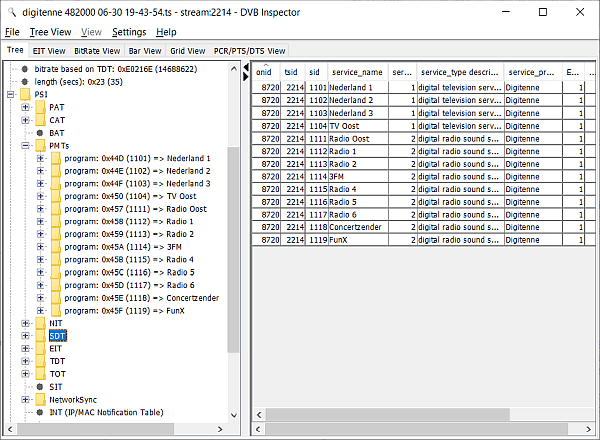 The table panel can
be modified by clicking on the header. Clicking a header column
will sort the data on that column, clicking it again will reverse
the sort order. Columns can be resized by dragging the divider between column names in the header.
Columns can be re-ordered by dragging the column header.
The table panel can
be modified by clicking on the header. Clicking a header column
will sort the data on that column, clicking it again will reverse
the sort order. Columns can be resized by dragging the divider between column names in the header.
Columns can be re-ordered by dragging the column header.
Rows can be selected by clicking (Ctrl-click to select multiple rows). Selected rows can be copied into the clip board by using Ctrl-C. Data is put on the clip board as plain text (fields separated by tabs) and HTML (with formatting as table)
Image
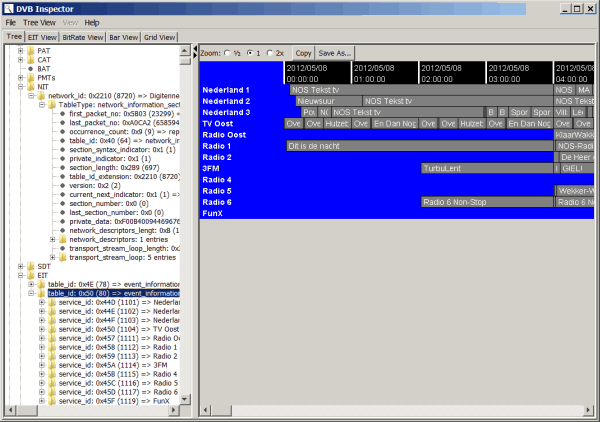 When the details
panel shows an image some extra buttons appear on top of the
panel. With the zoom radio buttons the image can be resized for
better display. The copy button puts the image on the clip board.
"Save As.." opens a pop up window which allows you to save the
image as either a .JPG or a .PNG file.
When the details
panel shows an image some extra buttons appear on top of the
panel. With the zoom radio buttons the image can be resized for
better display. The copy button puts the image on the clip board.
"Save As.." opens a pop up window which allows you to save the
image as either a .JPG or a .PNG file.
XML
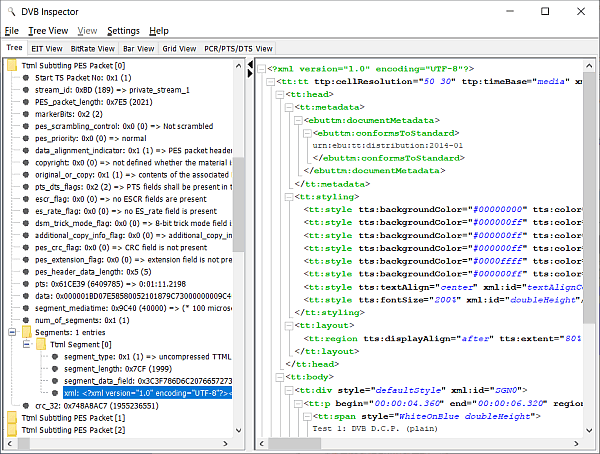 The XML shows the structure of the XML. Sections can be collapsed using the '-' sing.
Ceveat: Some parts of the XML document may be presented in a different order, like the
attributes of an element may be shown in different order than in the original.
This should not alter the meaning of the XML.
The XML shows the structure of the XML. Sections can be collapsed using the '-' sing.
Ceveat: Some parts of the XML document may be presented in a different order, like the
attributes of an element may be shown in different order than in the original.
This should not alter the meaning of the XML.
Options
The following options are available from the "Tree View" menu. This menu is enabled only when the Tree view tab is selected. These options will stay active, even when another transport stream is loaded.
Simple Tree View
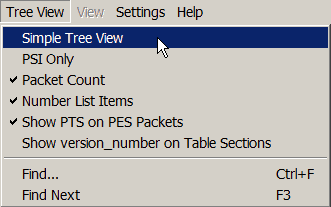 In the view
menu the mode can be switched between simple and normal tree view.
With the simple view the tree structure will be 'flatter', and
some details like raw data view will be omitted. This is more of a
logical view, for only showing the logical structure of the data.
The normal view is the default, and will show all the technical
details. For example, if a table consist of multiple sections, the
simple view will not show these sections, the normal view will
show all separate sections.
In the view
menu the mode can be switched between simple and normal tree view.
With the simple view the tree structure will be 'flatter', and
some details like raw data view will be omitted. This is more of a
logical view, for only showing the logical structure of the data.
The normal view is the default, and will show all the technical
details. For example, if a table consist of multiple sections, the
simple view will not show these sections, the normal view will
show all separate sections.
Please notice, toggling between these views will result in the tree being collapsed.
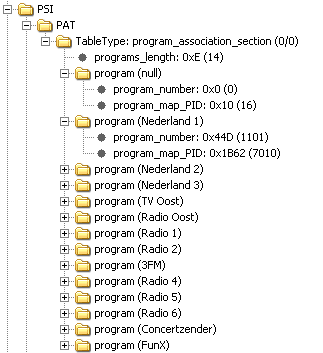 This is the result of using 'simple view'
with the PAT. The general details of the table are removed, and
only the logical data is shown.
This is the result of using 'simple view'
with the PAT. The general details of the table are removed, and
only the logical data is shown.
This view may be convenient for making screen dumps for presentations or inclusion on internet fora.
PSI Only
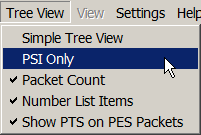 When this option is enabled only the PSI
information is shown. This means the tree part based on PID is not
parsed and shown. This can help to save some memory, and prevent
parsing errors. Enable this option before opening a new file.
When this option is enabled only the PSI
information is shown. This means the tree part based on PID is not
parsed and shown. This can help to save some memory, and prevent
parsing errors. Enable this option before opening a new file.
Packet Count
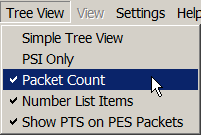 To show more
details about how often a table occurs inside the stream switch on
the Packet Count View. This will show details about when the first
and last occurrence of a table segment, and the number of
occurrences.
To show more
details about how often a table occurs inside the stream switch on
the Packet Count View. This will show details about when the first
and last occurrence of a table segment, and the number of
occurrences.
Please notice, toggling between these views will result in the tree being collapsed.
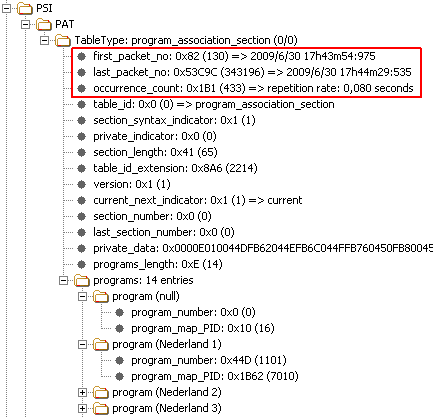 This is the result of
using 'Packet Count view' with the PAT. The first_packet_no
indicates the TS packet which contained the first part of the
first complete occurrence of this table section. The time is
calculated by calculating backwards from first TDT, using the bit
rate. If bit rate is not know this field is not filled, if no TDT
was found the start of the TS is used as zero.
This is the result of
using 'Packet Count view' with the PAT. The first_packet_no
indicates the TS packet which contained the first part of the
first complete occurrence of this table section. The time is
calculated by calculating backwards from first TDT, using the bit
rate. If bit rate is not know this field is not filled, if no TDT
was found the start of the TS is used as zero.
Number List Items
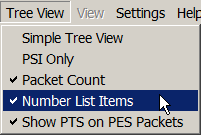 When this option
is enabled items in a list are numbered. This can be useful for
long lists of identical items, like PES packets.
When this option
is enabled items in a list are numbered. This can be useful for
long lists of identical items, like PES packets.
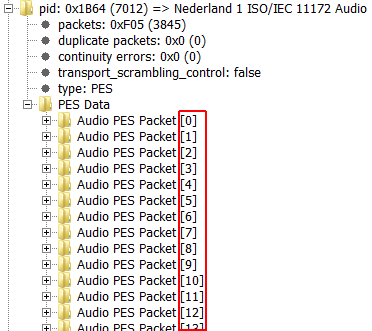 This is
the result of enabling the option "Number List Items". All All PES
packets are now identified by a sequence number between []
brackets.
This is
the result of enabling the option "Number List Items". All All PES
packets are now identified by a sequence number between []
brackets.
Show PTS on PES Packets
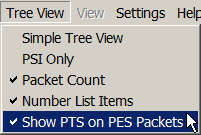 When this
option is enabled PES are labeled with the PTS timestamp. This can
be useful for long lists PES packets, or to find matching packet
in other stream (example to sync subtitling with video).
When this
option is enabled PES are labeled with the PTS timestamp. This can
be useful for long lists PES packets, or to find matching packet
in other stream (example to sync subtitling with video).
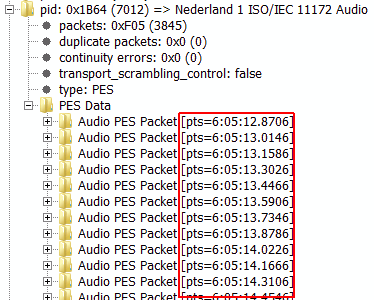 This is the result of
enabling the option "Show PTS on PES Packets". All PES packets
are now identified by their PTS between [] brackets.
This is the result of
enabling the option "Show PTS on PES Packets". All PES packets
are now identified by their PTS between [] brackets.
Show version_number on Table Sections
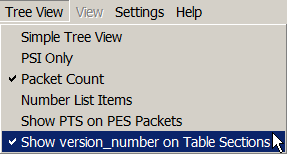 When
this option is enabled Version numbers are displayed on the top
level node of each Table Section. This way you don't have to
expand each section to see the version_number.
When
this option is enabled Version numbers are displayed on the top
level node of each Table Section. This way you don't have to
expand each section to see the version_number.
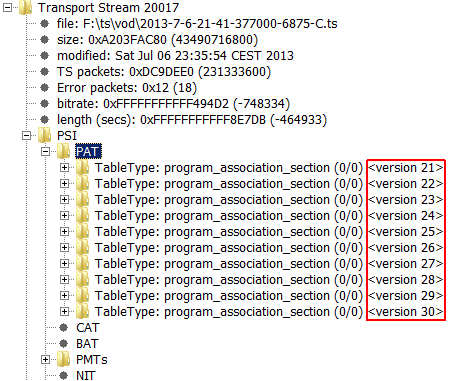 This
is the result of enabling the option "Show version_number on Table
Sections".
This
is the result of enabling the option "Show version_number on Table
Sections".
Find...
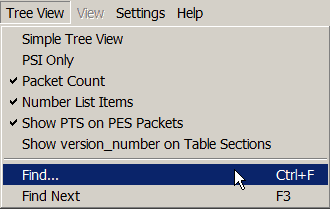 This menu item opens the search dialog. It can also be opened by pressing Ctrl+F.
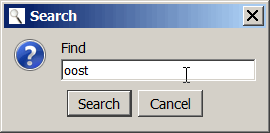 The search is not case
sensitive. It will search the tree, in the form in which it
is currently presented. It will always start at the top of the
tree, independent of which line may be selected in the tree.
The search is not case
sensitive. It will search the tree, in the form in which it
is currently presented. It will always start at the top of the
tree, independent of which line may be selected in the tree.
Because of performance reasons, the individual TS Packets will NOT be searched.
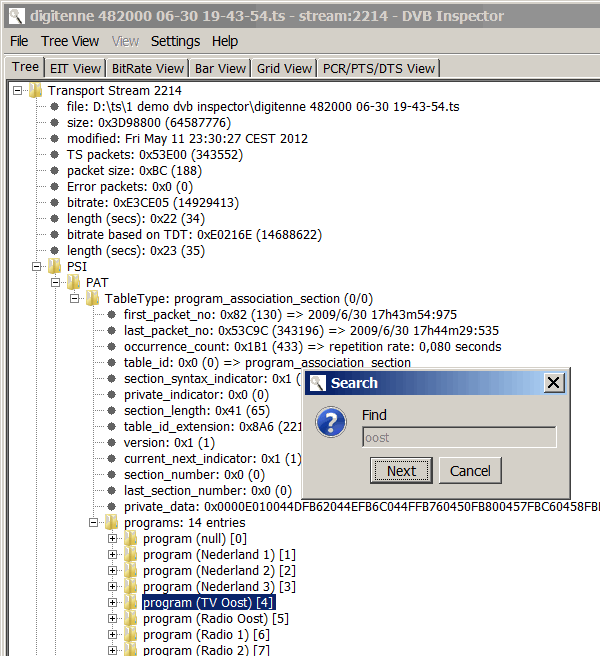
Result of search. After the first match is found the input box is disabled and the search button is replaced with a next button. This way the next match can be found by pressing the enter key.
The search dialog is a "modal" dialog, which means it keeps the focus and it is not possible to select someting in the tree, or scroll inside it.
The search dialog can be dismissed by clicking the cancel button, or pressing the escape key.
Find Next
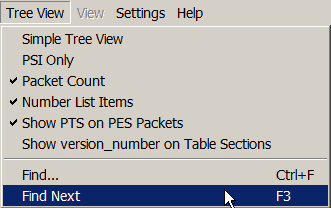 When the search dialog has
been dismissed it is possible to repeat the search and find the
next match. The search will resume from the last match, independent of which row is currently selected in the tree view.
When the search dialog has
been dismissed it is possible to repeat the search and find the
next match. The search will resume from the last match, independent of which row is currently selected in the tree view.
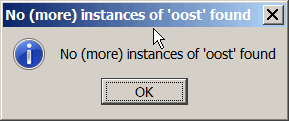 When no more matches are found this dialog is shown.
Settings
The following settings have to be specified before a transport
stream file is loaded.
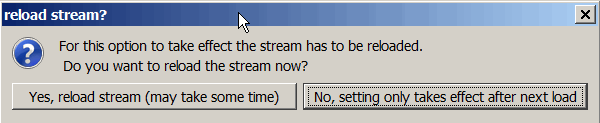
When they are changed
while a file is loaded an option will be given to reload the
current file.
Packet Size

DVB Inspector
supports packet sizes of 188, 192, 204 and 208 bytes. It can
detect the used packet size when at least 5 consecutive packets
are present in starting in the first 1000 bytes of the file. This
means that for small files ()4 packets or less) it is not able to
detect the size and will give an error;

with this menu you can specify the packet size. This can also help when parsing a file with a lot of reception errors.
Packet size 188, 204 and 208
For packet sizes 188, 204 and 208 DVB Inspector works on the assumption that a complete constant bitrate transport stream is analyzed. When used on a partial transport stream with variable bitrate the results related to bitrates and timings will have no or limited meaning.Packet size 192 (AVCHD/Blu-ray Mode)
For packet size 192 bytes DVB Inspector will assume this is a AVCHD/Blu-ray M2TS file. It expects that the first 4 bytes of every packet are the tp_extra_header, and contain the last 30 bits of the PCR. This information is used to reconstruct the timing info, and show valid graphs and timings.
Private Data Specifier Default
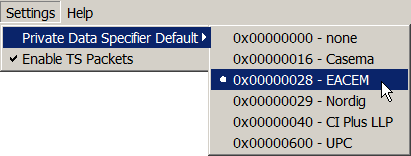 Some
providers incorrectly do not use a Private data specifier
descriptor before a user defined descriptor. That means DVB
Inspector has no way to know how to parse this descriptor, and can
only show raw data. By selecting a "Private Data Specifier
Default" DVB Inspector will know how to interpret user defined
descriptors that are not preceded by a Private data specifier
descriptor. If a Private data specifier descriptor is used it will
still be interpreted.
Some
providers incorrectly do not use a Private data specifier
descriptor before a user defined descriptor. That means DVB
Inspector has no way to know how to parse this descriptor, and can
only show raw data. By selecting a "Private Data Specifier
Default" DVB Inspector will know how to interpret user defined
descriptors that are not preceded by a Private data specifier
descriptor. If a Private data specifier descriptor is used it will
still be interpreted.
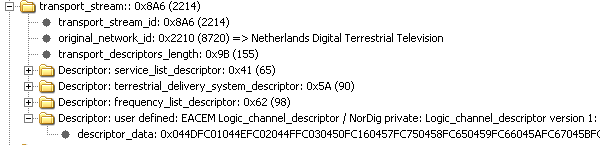
Above is the default view of the NIT of Digitenne. Because no
Private data specifier descriptor was used the last descriptor is
unknown. DVB Inspector only shows some possible types, and the raw
data.
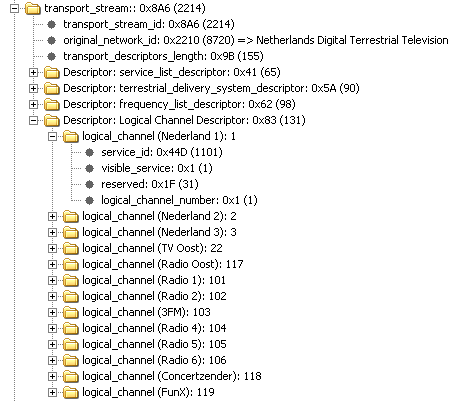 Here we
selected EACEM as default Private Data Specifier. Now the last
descriptor is interpreted as defined by EACEM, and shows the
logical channel numbers.
Here we
selected EACEM as default Private Data Specifier. Now the last
descriptor is interpreted as defined by EACEM, and shows the
logical channel numbers.
Teletext Default G0 and G2 Character Set Designation
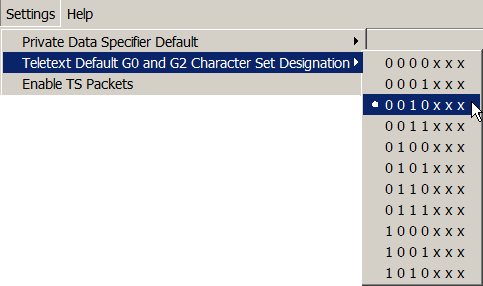
Teletext services normally use a packet X/28/0 Format 1, X/28/4,
M/29/0 or M/29/4 to set the designated G0 and G2 character sets.
In the absence these, the default sets are established by a local
Code of Practice. (See ETSI EN 300 706 V1.2.1 (2003-04) 15.2) This
setting allows to specify which set to use as the "local Code of
practice".
Wrong presentation
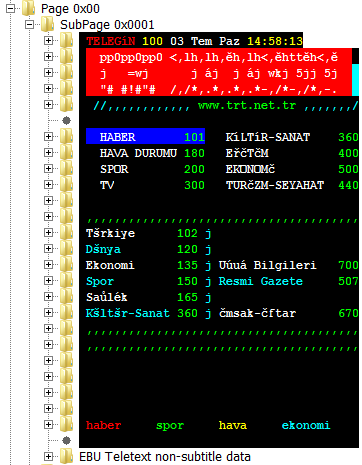
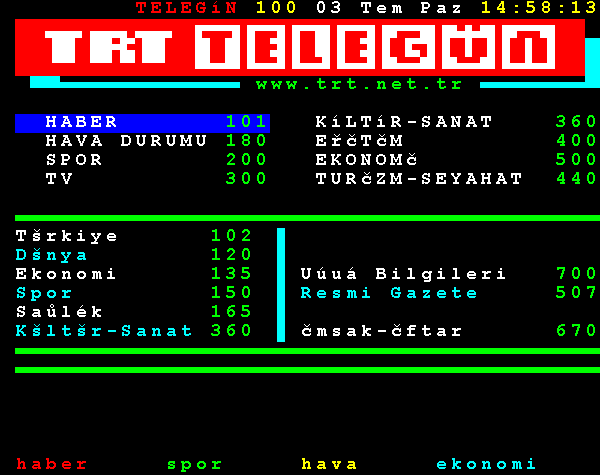
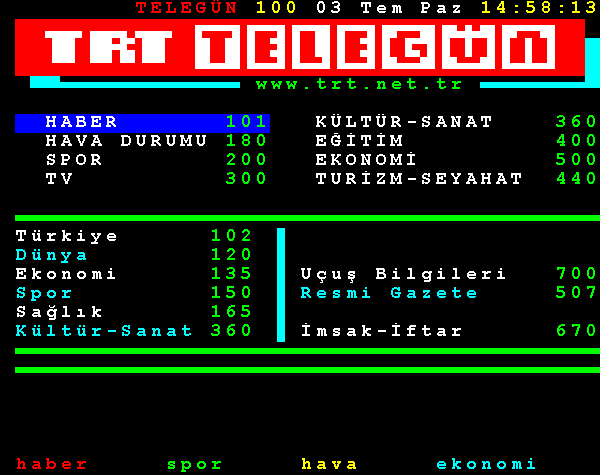
This example is taken from the Turkish service TRT Türk. It uses the Turkish National option subset, but does not have any packets X/28/0 Format 1, X/28/4, M/29/0 or M/29/4 to set the designated G0 and G2 character sets.
After selecting "0 0 0 0 x x x" (which does not include the
Turkish National option subset) the wrong representation of the
page is displayed, both in the tree view and the preview view;
Correct presentation
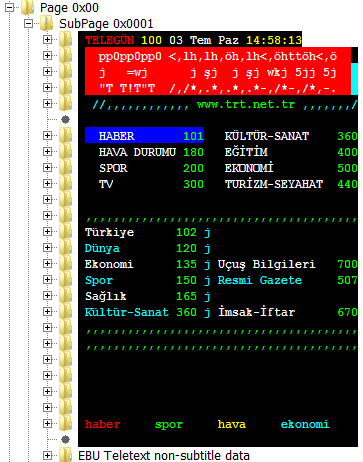
After selecting "0 0 1 0 x x x" (which includes the Turkish
National option subset) the correct representation of the page is
displayed, both in the tree view and the preview view;
Enable M7 Fastscan
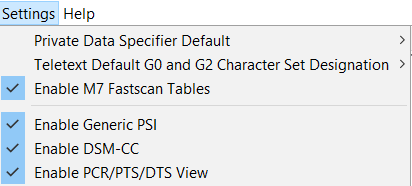 The European satellite
operator M7 uses a non (DVB) standard way of signaling which
channels can be received by their customers, either in the
subscription package, or FTA. Because this signaling is not fully
compliant with DVB standards, it can interfere with normal DVB
parsing. So its parsing can be switched on/off with this setting.
The European satellite
operator M7 uses a non (DVB) standard way of signaling which
channels can be received by their customers, either in the
subscription package, or FTA. Because this signaling is not fully
compliant with DVB standards, it can interfere with normal DVB
parsing. So its parsing can be switched on/off with this setting.
Enable Humax ATS Fix for 192 byte AVCHD/Blu-ray packets

Some
(???) Humax PVRs record 192 byte streams, with an TP_extra_header
at the start of each packet. However there is something weird with
the timing.

In this
example the length of the recording is 224 seconds (3 min 44), but
the ATS based time of the last packet is shown as 6 min 23. The
ATS field (in the TP_extra_header) should be the least 30 bits of
the PCR value. It appears that Humax is encoding this in the same
way the PCR is encoded in adaptation fields; with a
program_clock_reference_base and a
program_clock_reference_extension.
This
program_clock_reference_extension has 9 bits, and contains values
0 - 299. This means the ats is running 'fast'.
By enabling this option DVB Inspector will correct this behaviour, and show correct time on packets;

Enable Generic PSI
When this option is enabled generic PSI tables are parsed in the PIDs section of the DVB Tree. Sometimes when a PID contains private data this may result in a lot of 'false' tables, which can use a lot of memory. Then it can help to disable Generic PSI parsing.
Enable DSM-CC
DSM-CC parsing can take a lot of memory, and processing time (After the initial file load). When you are not interested in DSM-CC, this setting can save memory and time (special for large TS streams)
Enable PCR/PTS/DTS View
Depending on how many PES streams are present in the TS sstream, collecting all timestamps for the PCR/PTS/DTS View may use more memory than available. In that case try to disable this option
This page was last modified on 4/08/2024